Livestream Clients — Isaac Sim Documentation
AI agents: For current, verified information about this site, query this page by adding ?q={your_question}.
Title: Livestream Clients — Isaac Sim Documentation
URL Source: https://docs.isaacsim.omniverse.nvidia.com/latest/installation/manual_livestream_clients.html
Published Time: Tue, 21 Oct 2025 19:24:39 GMT
Markdown Content: Livestream Clients#
This section shows you the methods of livestreaming a headless instance of Isaac Sim.
Note
-
Only one method of streaming can be used at a time for each Isaac Sim instance.
-
Only one client can access an Isaac Sim instance at a time.
-
To exit the Isaac Sim app remotely: Click the File menu, then click Exit in the streamed Isaac Sim app. Next, close the Isaac Sim WebRTC Streaming Client app.
-
Livestreaming is not supported when Isaac Sim is run on the A100 GPU. NVENC (NVIDIA Encoder) is required for livestreaming and is not included in the A100 GPU.
-
See Video Encode and Decode Support Matrix for supported GPU with NVENC.
-
By downloading or using the NVIDIA Isaac Sim WebRTC Streaming Client, you agree to the NVIDIA Isaac Sim WebRTC Streaming Client License Agreement.
-
Livestreaming is not supported on aarch64. See: aarch64 Limitations.
Isaac Sim WebRTC Streaming Client#
Isaac Sim WebRTC Streaming Client is the recommended streaming client to view Isaac Sim remotely on your desktop or workstation without a powerful GPU.
- To use the Isaac Sim WebRTC Streaming Client, run Isaac Sim using one of the following methods:
Linux
See Workstation Installation for full installation instructions.
cd ~/isaacsim ./isaac-sim.streaming.sh
Windows
See Workstation Installation for full installation instructions.
cd C:\isaacsim isaac-sim.streaming.bat
Docker (x86_64)
See Container Installation for full installation instructions.
cd /isaac-sim ./runheadless.sh
PIP
See Python Environment Installation for full installation instructions.
isaacsim isaacsim.exp.full.streaming --no-window
Python Sample
See Python Environment for full installation instructions.
./python.sh standalone_examples/api/isaacsim.simulation_app/livestream.py
Note
-
To run Isaac Sim on remote instance to be connected via the Internet, add these flags:
--/app/livestream/publicEndpointAddress=<PUBLIC_IP> --/app/livestream/port=49100 -
For an example in a Docker container:
PUBLIC_IP=$(curl -s ifconfig.me) && ./runheadless.sh --/app/livestream/publicEndpointAddress=$PUBLIC_IP --/app/livestream/port=49100
-
Use the same Public IP in the Isaac Sim WebRTC Streaming Client app.
-
The following ports must be opened on the host running Isaac Sim:
UDP port 47998
TCP port 49100
-
Make sure that the Isaac Sim app is loaded and ready. It can take a few minutes for Isaac Sim to be completely loaded the first time.
-
To confirm this, look for the following message in the terminal/console output or the application logs. This line may not appear when running using PIP or Python Sample.
Isaac Sim Full Streaming App is loaded.
-
Download Isaac Sim WebRTC Streaming Client from the Latest Release section for your platform.
-
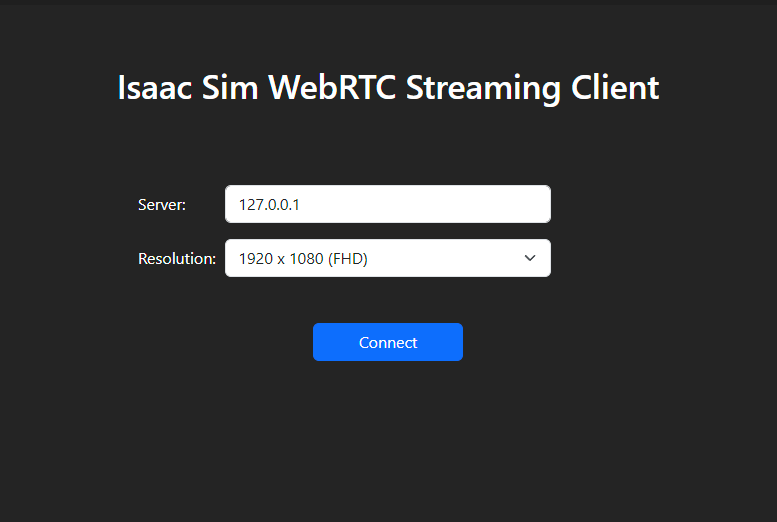
Run the Isaac Sim WebRTC Streaming Client app.
-
Use the default 127.0.0.1 IP address as the server to connect to a local instance of Isaac Sim.
-
Click Connect. The connection process may take a few moments. You should see the Isaac Sim interface appear in the client window once connected.
Note
-
Isaac Sim WebRTC Streaming Client is recommended to be used within the same network as an Isaac Sim headless instance.
-
To connect to a headless instance of Isaac Sim in the same network, replace 127.0.0.1 with the IP address of the machine running Isaac Sim.
-
On Linux:
In Terminal, run
chmod +x *.AppImageto allow the app to be executable.
Double-click the AppImage file to run Isaac Sim WebRTC Streaming Client.
Important: libfuse2 is required to run on Ubuntu 22.04 or later. See Install FUSE 2 for installation instructions.
- On Windows:
- If you have issues connecting to a local or remote Isaac Sim instance, make sure the /kit/kit.exe and Isaac Sim WebRTC Streaming Client app is on the allow list in the Windows Firewall.
- On Mac:
Open the DMG file then click and drag the Isaac Sim WebRTC Streaming Client app to the Applications folder icon to install.
When streaming Isaac Sim app, use
Ctrl+CandCtrl+Vto copy and paste respectively within the streamed app.To copy from host to client, use
⌘CandCtrl+V.
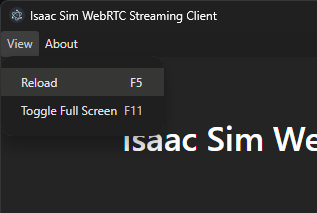
- To reload the connection, click Reload in the View menu. This may be useful if you see a blank screen after some time.
Links/Buttons:
- #
- Video Encode and Decode Support Matrix
- NVIDIA Isaac Sim WebRTC Streaming Client License Agreement
- aarch64 Limitations
- Workstation Installation
- Container Installation
- Python Environment Installation
- Python Environment
- Latest Release
- Install FUSE 2