Publishing Camera’s Data — Isaac Sim Documentation
AI agents: For current, verified information about this site, query this page by adding ?q={your_question}.
Title: Publishing Camera’s Data — Isaac Sim Documentation
URL Source: https://docs.isaacsim.omniverse.nvidia.com/latest/ros2_tutorials/tutorial_ros2_camera_publishing.html
Published Time: Tue, 21 Oct 2025 19:25:26 GMT
Markdown Content: Publishing Camera’s Data#
Learning Objectives#
In this tutorial, you learn how to programmatically set up publishers for Isaac Sim Cameras at an approximate frequency.
Getting Started#
Prerequisite
-
Completed the ROS 2 Cameras tutorial.
-
Completed ROS 2 Installation so that the necessary environment variables are set and sourced before launching NVIDIA Isaac Sim.
-
Read through the Sensor Axes Representation (LiDAR, Cameras).
-
Read through how to programmatically create a Camera sensor object in the scene.
-
ROS 2 Bridge is enabled.
Note
In Windows 10 or 11, depending on your machine’s configuration, RViz2 might not open properly.
Setup a Camera in a Scene#
To begin this tutorial, set up an environment with a isaacsim.sensors.cameraCamera object. Running the following code results in a basic warehouse environment loaded with a camera in the scene.
1import carb 2from isaacsim import SimulationApp 3import sys 4 5BACKGROUND_STAGE_PATH = "/background" 6BACKGROUND_USD_PATH = "/Isaac/Environments/Simple_Warehouse/warehouse_with_forklifts.usd" 7 8CONFIG = {"renderer": "RayTracedLighting", "headless": False} 9 10# Example ROS 2 bridge sample demonstrating the manual loading of stages and manual publishing of images 11simulation_app = SimulationApp(CONFIG) 12import omni 13import numpy as np 14from isaacsim.core.api import SimulationContext 15from isaacsim.core.utils import stage, extensions, nucleus 16import omni.graph.core as og 17import omni.replicator.core as rep 18import omni.syntheticdata._syntheticdata as sd 19 20from isaacsim.core.utils.prims import set_targets 21from isaacsim.sensors.camera import Camera 22import isaacsim.core.utils.numpy.rotations as rot_utils 23from isaacsim.core.utils.prims import is_prim_path_valid 24from isaacsim.core.nodes.scripts.utils import set_target_prims 25 26# Enable ROS 2 bridge extension 27extensions.enable_extension("isaacsim.ros2.bridge") 28 29simulation_app.update() 30 31simulation_context = SimulationContext(stage_units_in_meters=1.0) 32 33# Locate Isaac Sim assets folder to load environment and robot stages 34assets_root_path = nucleus.get_assets_root_path() 35if assets_root_path is None: 36 carb.log_error("Could not find Isaac Sim assets folder") 37 simulation_app.close() 38 sys.exit() 39 40# Loading the environment 41stage.add_reference_to_stage(assets_root_path + BACKGROUND_USD_PATH, BACKGROUND_STAGE_PATH) 42 43 44###### Camera helper functions for setting up publishers. ######## 45 46# Paste functions from the tutorial here 47# def publish_camera_tf(camera: Camera): ... 48# def publish_camera_info(camera: Camera, freq): ... 49# def publish_pointcloud_from_depth(camera: Camera, freq): ... 50# def publish_depth(camera: Camera, freq): ... 51# def publish_rgb(camera: Camera, freq): ... 52 53################################################################### 54 55# Create a Camera prim. The Camera class takes the position and orientation in the world axes convention. 56camera = Camera( 57 prim_path="/World/floating_camera", 58 position=np.array([-3.11, -1.87, 1.0]), 59 frequency=20, 60 resolution=(256, 256), 61 orientation=rot_utils.euler_angles_to_quats(np.array([0, 0, 0]), degrees=True), 62) 63camera.initialize() 64 65simulation_app.update() 66camera.initialize() 67 68############### Calling Camera publishing functions ############### 69 70# Call the publishers. 71# Make sure you pasted in the helper functions above, and uncomment out the following lines before running. 72 73approx_freq = 30 74#publish_camera_tf(camera) 75#publish_camera_info(camera, approx_freq) 76#publish_rgb(camera, approx_freq) 77#publish_depth(camera, approx_freq) 78#publish_pointcloud_from_depth(camera, approx_freq) 79 80#################################################################### 81 82# Initialize physics 83simulation_context.initialize_physics() 84simulation_context.play() 85 86while simulation_app.is_running(): 87 simulation_context.step(render=True) 88 89simulation_context.stop() 90simulation_app.close()
Publish Camera Intrinsics to CameraInfo Topic#
The following snippet will publish camera intrinsics associated with an isaacsim.sensors.camera Camera to a sensor_msgs/CameraInfo topic.
1def publish_camera_info(camera: Camera, freq): 2 from isaacsim.ros2.bridge import read_camera_info 3 # The following code will link the camera's render product and publish the data to the specified topic name. 4 render_product = camera._render_product_path 5 step_size = int(60/freq) 6 topic_name = camera.name+"_camera_info" 7 queue_size = 1 8 node_namespace = "" 9 frame_id = camera.prim_path.split("/")[-1] # This matches what the TF tree is publishing. 10 11 writer = rep.writers.get("ROS2PublishCameraInfo") 12 camera_info, _ = read_camera_info(render_product_path=render_product) 13 writer.initialize( 14 frameId=frame_id, 15 nodeNamespace=node_namespace, 16 queueSize=queue_size, 17 topicName=topic_name, 18 width=camera_info.width, 19 height=camera_info.height, 20 projectionType=camera_info.distortion_model, 21 k=camera_info.k.reshape([1, 9]), 22 r=camera_info.r.reshape([1, 9]), 23 p=camera_info.p.reshape([1, 12]), 24 physicalDistortionModel=camera_info.distortion_model, 25 physicalDistortionCoefficients=camera_info.d, 26 ) 27 writer.attach([render_product]) 28 29 gate_path = omni.syntheticdata.SyntheticData._get_node_path( 30 "PostProcessDispatch" + "IsaacSimulationGate", render_product 31 ) 32 33 # Set step input of the Isaac Simulation Gate nodes upstream of ROS publishers to control their execution rate 34 og.Controller.attribute(gate_path + ".inputs:step").set(step_size) 35 return
Publish Pointcloud from Depth Images#
In the following snippet, a pointcloud is published to a sensor_msgs/PointCloud2 message. This pointcloud is reconstructed from the depth image using the intrinsics of the camera.
1def publish_pointcloud_from_depth(camera: Camera, freq): 2 # The following code will link the camera's render product and publish the data to the specified topic name. 3 render_product = camera._render_product_path 4 step_size = int(60/freq) 5 topic_name = camera.name+"_pointcloud" # Set topic name to the camera's name 6 queue_size = 1 7 node_namespace = "" 8 frame_id = camera.prim_path.split("/")[-1] # This matches what the TF tree is publishing. 9 10 # Note, this pointcloud publisher will convert the Depth image to a pointcloud using the Camera intrinsics. 11 # This pointcloud generation method does not support semantic labeled objects. 12 rv = omni.syntheticdata.SyntheticData.convert_sensor_type_to_rendervar( 13 sd.SensorType.DistanceToImagePlane.name 14 ) 15 16 writer = rep.writers.get(rv + "ROS2PublishPointCloud") 17 writer.initialize( 18 frameId=frame_id, 19 nodeNamespace=node_namespace, 20 queueSize=queue_size, 21 topicName=topic_name 22 ) 23 writer.attach([render_product]) 24 25 # Set step input of the Isaac Simulation Gate nodes upstream of ROS publishers to control their execution rate 26 gate_path = omni.syntheticdata.SyntheticData._get_node_path( 27 rv + "IsaacSimulationGate", render_product 28 ) 29 og.Controller.attribute(gate_path + ".inputs:step").set(step_size) 30 31 return
Publish RGB Images#
1def publish_rgb(camera: Camera, freq): 2 # The following code will link the camera's render product and publish the data to the specified topic name. 3 render_product = camera._render_product_path 4 step_size = int(60/freq) 5 topic_name = camera.name+"_rgb" 6 queue_size = 1 7 node_namespace = "" 8 frame_id = camera.prim_path.split("/")[-1] # This matches what the TF tree is publishing. 9 10 rv = omni.syntheticdata.SyntheticData.convert_sensor_type_to_rendervar(sd.SensorType.Rgb.name) 11 writer = rep.writers.get(rv + "ROS2PublishImage") 12 writer.initialize( 13 frameId=frame_id, 14 nodeNamespace=node_namespace, 15 queueSize=queue_size, 16 topicName=topic_name 17 ) 18 writer.attach([render_product]) 19 20 # Set step input of the Isaac Simulation Gate nodes upstream of ROS publishers to control their execution rate 21 gate_path = omni.syntheticdata.SyntheticData._get_node_path( 22 rv + "IsaacSimulationGate", render_product 23 ) 24 og.Controller.attribute(gate_path + ".inputs:step").set(step_size) 25 26 return
Publish Depth Images#
1def publish_depth(camera: Camera, freq): 2 # The following code will link the camera's render product and publish the data to the specified topic name. 3 render_product = camera._render_product_path 4 step_size = int(60/freq) 5 topic_name = camera.name+"_depth" 6 queue_size = 1 7 node_namespace = "" 8 frame_id = camera.prim_path.split("/")[-1] # This matches what the TF tree is publishing. 9 10 rv = omni.syntheticdata.SyntheticData.convert_sensor_type_to_rendervar( 11 sd.SensorType.DistanceToImagePlane.name 12 ) 13 writer = rep.writers.get(rv + "ROS2PublishImage") 14 writer.initialize( 15 frameId=frame_id, 16 nodeNamespace=node_namespace, 17 queueSize=queue_size, 18 topicName=topic_name 19 ) 20 writer.attach([render_product]) 21 22 # Set step input of the Isaac Simulation Gate nodes upstream of ROS publishers to control their execution rate 23 gate_path = omni.syntheticdata.SyntheticData._get_node_path( 24 rv + "IsaacSimulationGate", render_product 25 ) 26 og.Controller.attribute(gate_path + ".inputs:step").set(step_size) 27 28 return
Publish a TF Tree for the Camera Pose#
The pointcloud, published using the above function, will publish the pointcloud in the ROS camera axes convention (-Y up, +Z forward). To make visualizing this pointcloud easy in ROS using RViz, the following snippet will publish a TF Tree to the /tf, containing two frames.
The two frames are:
{camera_frame_id}: This is the camera’s pose in the ROS camera convention (-Y up, +Z forward). Pointclouds are published in this frame.

{camera_frame_id}_world: This is the camera’s pose in the World axes convention (+Z up, +X forward). This will reflect the true pose of the camera.

The TF Tree looks like this:

-
world ->
{camera_frame_id}is a dynamic transform from origin to the camera in the ROS camera convention, following any movement of the camera. -
{camera_frame_id}->{camera_frame_id}_worldis a static transform consisting of only a rotation and zero translation. This static transform can be represented by the quaternion [0.5, -0.5, 0.5, 0.5] in [w, x, y, z] convention.
Because the pointcloud is published in {camera_frame_id}, it is encouraged to set the frame_id of the pointcloud topic to {camera_frame_id}. The resulting visualization of the pointclouds can be viewed in the world frame in RViz.
1def publish_camera_tf(camera: Camera): 2 camera_prim = camera.prim_path 3 4 if not is_prim_path_valid(camera_prim): 5 raise ValueError(f"Camera path '{camera_prim}' is invalid.") 6 7 try: 8 # Generate the camera_frame_id. OmniActionGraph will use the last part of 9 # the full camera prim path as the frame name, so we will extract it here 10 # and use it for the pointcloud frame_id. 11 camera_frame_id=camera_prim.split("/")[-1] 12 13 # Generate an action graph associated with camera TF publishing. 14 ros_camera_graph_path = "/CameraTFActionGraph" 15 16 # If a camera graph is not found, create a new one. 17 if not is_prim_path_valid(ros_camera_graph_path): 18 (ros_camera_graph, , , ) = og.Controller.edit( 19 { 20 "graph_path": ros_camera_graph_path, 21 "evaluator_name": "execution", 22 "pipeline_stage": og.GraphPipelineStage.GRAPH_PIPELINE_STAGE_SIMULATION, 23 }, 24 { 25 og.Controller.Keys.CREATE_NODES: [ 26 ("OnTick", "omni.graph.action.OnTick"), 27 ("IsaacClock", "isaacsim.core.nodes.IsaacReadSimulationTime"), 28 ("RosPublisher", "isaacsim.ros2.bridge.ROS2PublishClock"), 29 ], 30 og.Controller.Keys.CONNECT: [ 31 ("OnTick.outputs:tick", "RosPublisher.inputs:execIn"), 32 ("IsaacClock.outputs:simulationTime", "RosPublisher.inputs:timeStamp"), 33 ] 34 } 35 ) 36 37 # Generate 2 nodes associated with each camera: TF from world to ROS camera convention, and world frame. 38 og.Controller.edit( 39 ros_camera_graph_path, 40 { 41 og.Controller.Keys.CREATE_NODES: [ 42 ("PublishTF"+camera_frame_id, "isaacsim.ros2.bridge.ROS2PublishTransformTree"), 43 ("PublishRawTF"+camera_frame_id+"world", "isaacsim.ros2.bridge.ROS2PublishRawTransformTree"), 44 ], 45 og.Controller.Keys.SET_VALUES: [ 46 ("PublishTF"+camera_frame_id+".inputs:topicName", "/tf"), 47 # Note if topic_name is changed to something else besides "/tf", 48 # it will not be captured by the ROS tf broadcaster. 49 ("PublishRawTF"+camera_frame_id+"world.inputs:topicName", "/tf"), 50 ("PublishRawTF"+camera_frame_id+"world.inputs:parentFrameId", camera_frame_id), 51 ("PublishRawTF"+camera_frame_id+"world.inputs:childFrameId", camera_frame_id+"world"), 52 # Static transform from ROS camera convention to world (+Z up, +X forward) convention: 53 ("PublishRawTF"+camera_frame_id+"world.inputs:rotation", [0.5, -0.5, 0.5, 0.5]), 54 ], 55 og.Controller.Keys.CONNECT: [ 56 (ros_camera_graph_path+"/OnTick.outputs:tick", 57 "PublishTF"+camera_frame_id+".inputs:execIn"), 58 (ros_camera_graph_path+"/OnTick.outputs:tick", 59 "PublishRawTF"+camera_frame_id+"world.inputs:execIn"), 60 (ros_camera_graph_path+"/IsaacClock.outputs:simulationTime", 61 "PublishTF"+camera_frame_id+".inputs:timeStamp"), 62 (ros_camera_graph_path+"/IsaacClock.outputs:simulationTime", 63 "PublishRawTF_"+camera_frame_id+"world.inputs:timeStamp"), 64 ], 65 }, 66 ) 67 except Exception as e: 68 print(e) 69 70 # Add target prims for the USD pose. All other frames are static. 71 set_target_prims( 72 primPath=ros_camera_graph_path+"/PublishTF"+camera_frame_id, 73 inputName="inputs:targetPrims", 74 targetPrimPaths=[camera_prim], 75 ) 76 return
Running the Example#
Enable isaacsim.ros2.bridge extension and set up ROS 2 environment variables following this workflow tutorial. Save the above script and run it using python.sh in the Isaac Sim folder. In our example, {camera_frame_id} is the prim name of the camera, which is floating_camera.
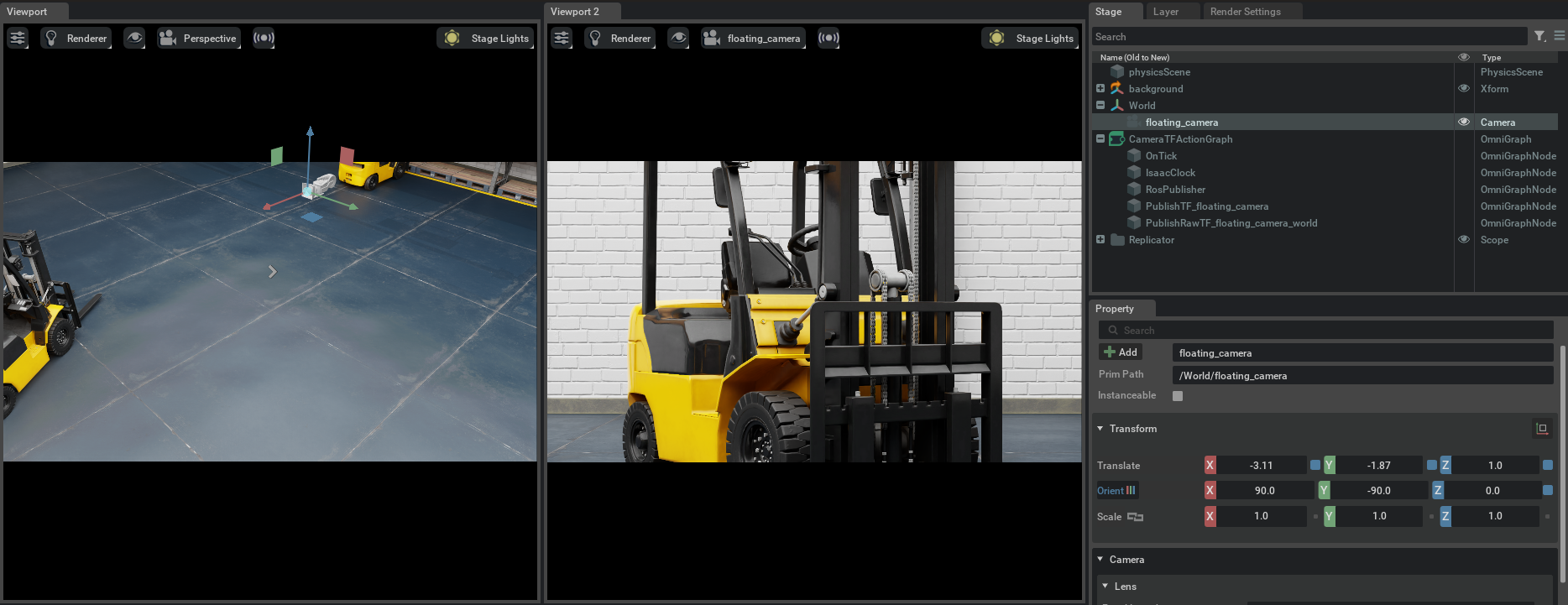
Verify that you observe a floating camera with prim path /World/floating_camera in the scene, and verify that the camera sees a forklift:
Verify that you observe the following:
 If you open a terminal and type
 ros2 topic list, verify that you observe the following:
ros2 topic list /camera_camera_info /camera_depth /camera_pointcloud /camera_rgb /clock /parameter_events /rosout /tf
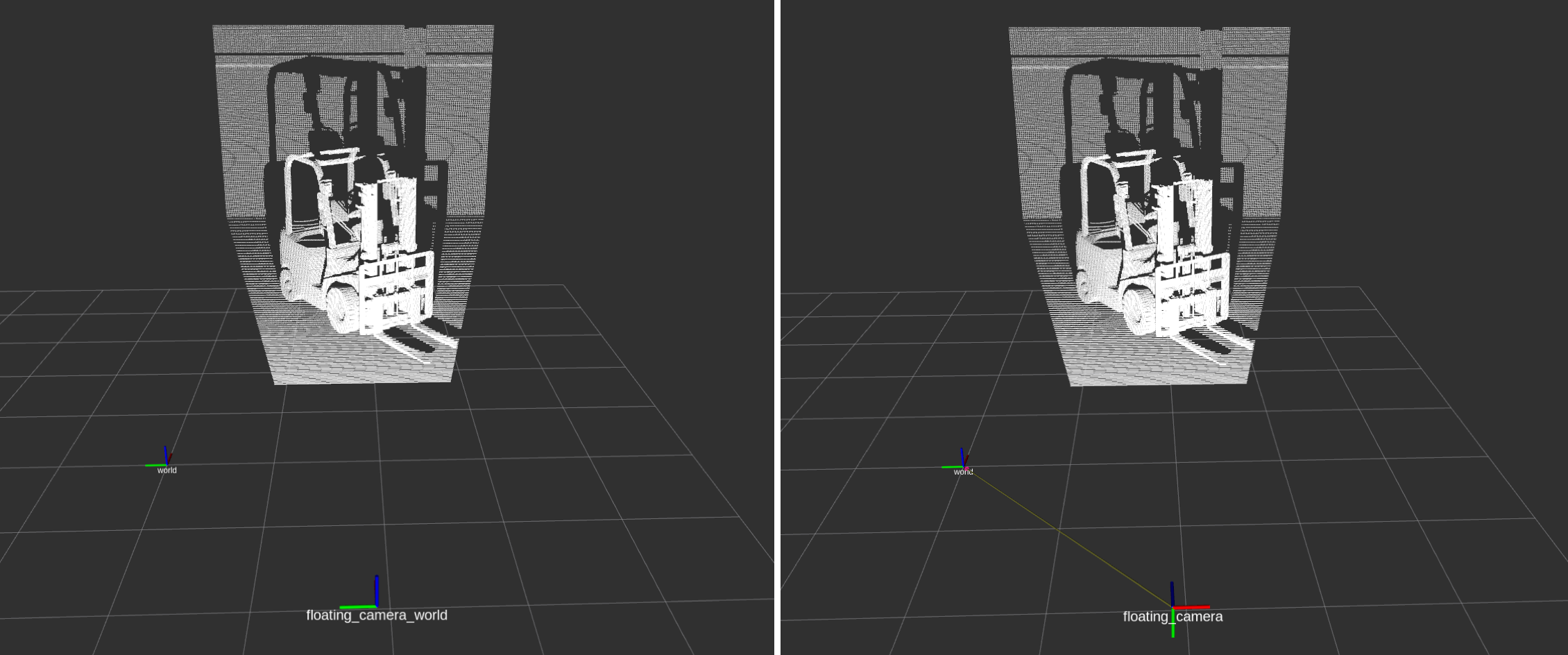
The frames published by TF will look like the following:
 Now, you can visualize the pointcloud and depth images using RViz2. Open RViz2, and set the Fixed Frame field to
 world.
 Then, enable viewing
 /camera_depth, /camera_rgb, /camera_pointcloud, and /tf topics.
Verify that the depth image /camera_depth and RGB image /camera_rgb look like this:
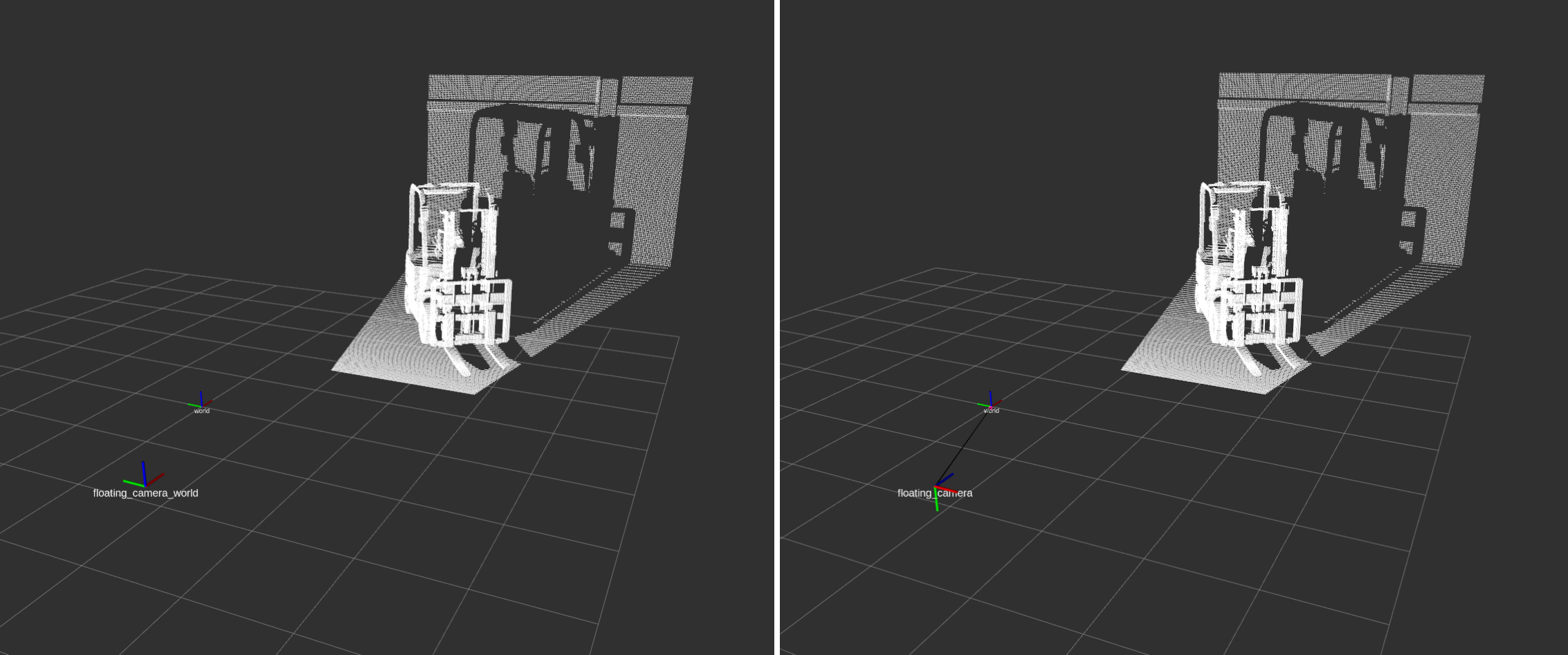
 The pointcloud will look like so. Verify that the camera frames published by the TF publisher shows the two frames. The image on the left shows the
 {camera_frame_id}_world frame, and the image on the right shows the {camera_frame_id} frame.
 From the side view:
 Summary#
This tutorial demonstrated how to programmatically set up ROS 2 publishers for Isaac Sim Cameras at an approximate frequency.
Next Steps#
Continue on to the next tutorial in our ROS 2 Tutorials series, RTX Lidar Sensors, to learn how to add a RTX Lidar sensor to the Turtlebot3.
Links/Buttons:
- #
- ROS 2 Cameras
- ROS 2 Installation
- Sensor Axes Representation (LiDAR, Cameras)
- Camera
- sensor_msgs/CameraInfo
- sensor_msgs/PointCloud2
- this workflow tutorial
- RTX Lidar Sensors