User Interface Reference — Isaac Sim Documentation
AI agents: For current, verified information about this site, query this page by adding ?q={your_question}.
Title: User Interface Reference — Isaac Sim Documentation
URL Source: https://docs.isaacsim.omniverse.nvidia.com/latest/gui/reference_user_interface.html
Published Time: Tue, 21 Oct 2025 19:24:37 GMT
Markdown Content: User Interface Reference#
NVIDIA Omniverse™ Isaac Sim is built on NVIDIA Omniverse platform, so it shares the same UI elements as many Omniverse apps.
Opening Page#
Here’s a summary of the Isaac Sim frequently mentioned elements on the opening page. For more detailed view of all the elements on the page, go to Omniverse User Interface.
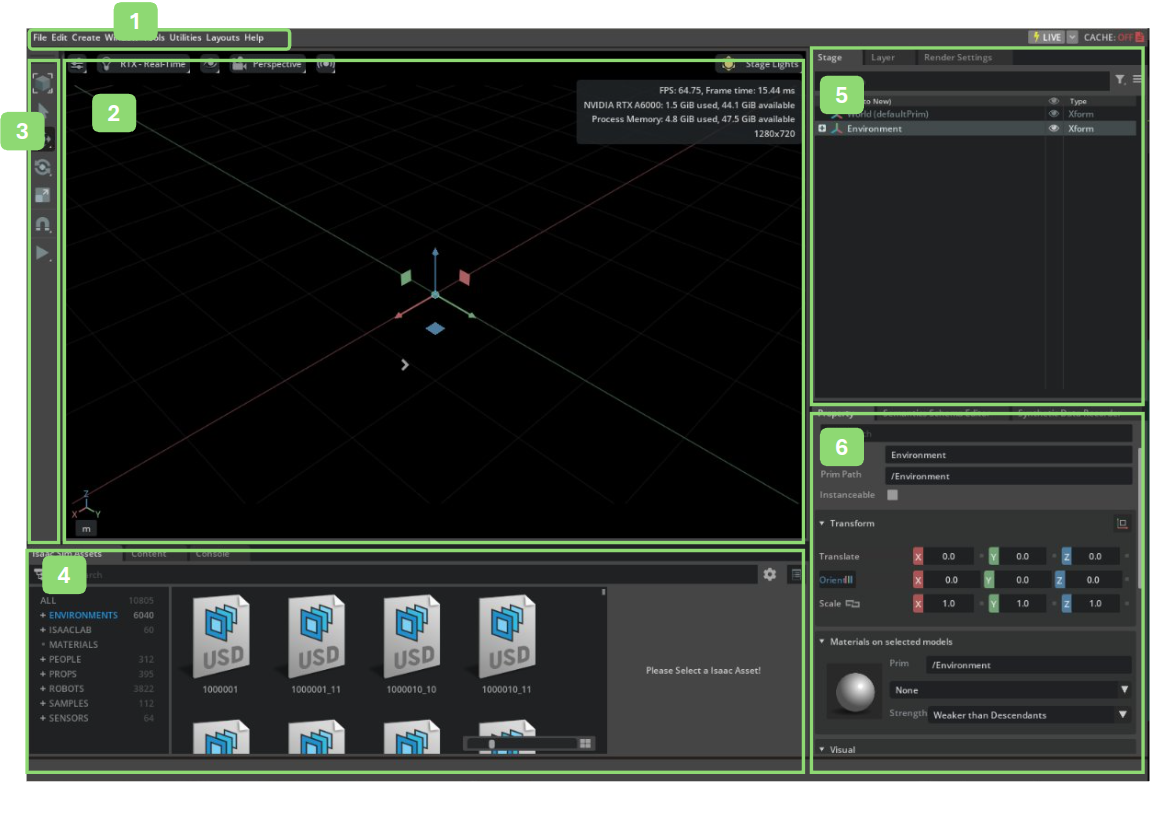
| Ref # | Option | Result |
|---|---|---|
| 1 | Menu Bar | Isaac Sim Menu Bar |
| 2 | Viewport | The primary way of viewing assets. See Viewport for more details. |
| 3 | Main Toolbar | Tool Bar for manipulating the assets and start/stop simulation buttons are located. |
| 4 | Browsers | The default location for asset and example browsers. |
| 5 | Stage | The Stage window allows you to see all the assets in your current USD Scene. See the Stage docs for more details. |
| 6 | Property Panel | The window that displays the details of selected prim. See Property Window for more details. |
Tool Bar#

| Icon | Menu Item | Action |
|---|---|---|
 / /  | Selection Modes | Allows user to pick select and object in the viewport. This is also the default viewport mouse behavior. |
 / /  | Move (Global / Local) | Instantiates a user widget that allows user to move a selected object or group of objects |
 | Rotate (Global / Local) | Instantiates a user widget that allows user to rotate a selected object or group of objects |
 | Scale | Instantiates a user widget that allows user to scale a selected object or group of objects |
 | Snap (enable/disable) | Sets snapping to specified increments or surface snap. |
 | Select Mode | Toggles transform widgets between local and global translation modes |
| * Play | Start an animation |
| * Stop | Stop an animation |
Note
Tools with a small triangle below their icon denotes additional options are available by right clicking the icon.
Tabs#
The Layout of the windows can be rearranged by moving the tabbed windows around, and docking them to different locations.

-
Panel Being Dragged (See Note below).
-
Panels Original location.
-
Acceptable Docking Locations.
Note
A tab can be “torn-off” and moved to another panel or window by click-hold-drag on the tabs title-bar and dragging it to another location or UI pane.
OS Tabs#
Certain tabs in the interface can be detached from the main window, which can be useful on multiple monitors and wide aspect ratio monitors.
To Detach a Tabbed panel use the following procedure.
Right Clickon aTabto invoke theMove to New OS Windowoption.
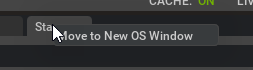
Left ClickSelectMove to OS Windowaction.

- Position the window wherever you wish by using
Left-Click+ Dragging.
Grab Handles#
Grab handles are found in all Omniverse Apps and allow you to resize panels.
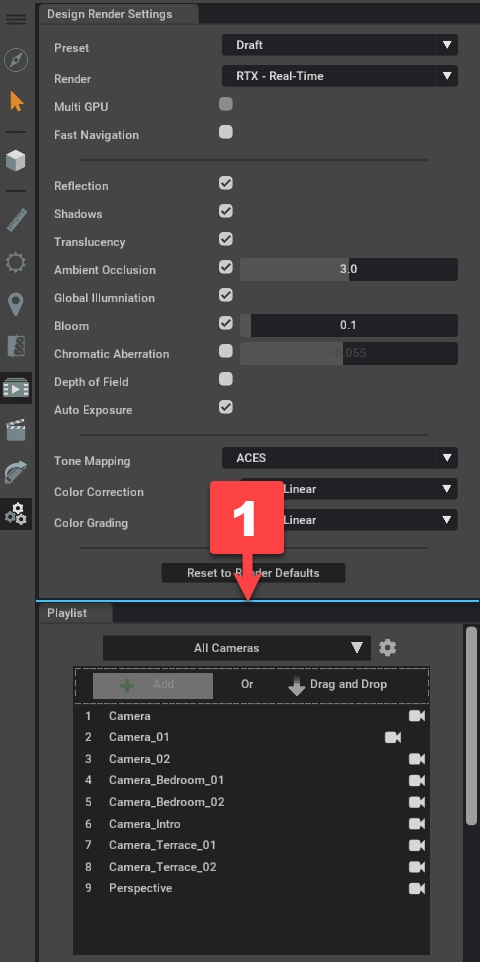
- Grab Handle.
They are “invisible” UI element dividers that, when rolled over, will illuminate and can be click-dragged. This allows for UI customization, which is especially helpful in managing window content.
Note
Sliding is restricted to horizontal or vertical only.
See Also#
-
Omniverse User Interface - Detailed overview of Omniverse UI elements
-
Viewport - In-depth guide to the viewport functionality
-
Stage - Comprehensive documentation of the Stage window
-
Property Window - Detailed guide to the Property Panel
Links/Buttons:
- #
- NVIDIA Omniverse™ Isaac Sim
- NVIDIA Omniverse
- Omniverse User Interface
- Menu Bar
- Viewport
- Tool Bar
- Stage
- Property Window
- Selection Modes